The Intulse and Touchpoint integration connects your phone system directly to your Touchpoint account, making it easier to manage and track communication.
Touchpoint Integration Key Features
With the integration enabled:
- Anywhere the Intulse App would normally display a phone number, it will automatically search your Touchpoint records and show the matching contact instead.
- When you receive an incoming call, the caller's name will appear exactly as it is listed in Touchpoint. Simply click the caller's name to open their Touchpoint record.
Call Logging
Each call log automatically includes:
- User and extension connected to the call
- Date, start time, and duration
- Direction (inbound or outbound)
- External phone number
- A copy of the call recording (if call recording was enabled)
- You can also add your own notes to any call log for future reference.
Text Message Logging
- If enabled, Intulse can automatically log text message conversations with your Touchpoint contacts. A record of all text messages is generated each night and added to the corresponding contact's history in Touchpoint.
Starting Calls & Texts
- From the Intulse App, you can search for a Touchpoint contact by name on the Phone screen and start a call instantly.
- With the Intulse Companion App installed in your browser, you can start calls or text conversations directly inside Touchpoint by simply clicking a phone number.
To experience the integration between Intulse and Touchpoint, you will need to use the Intulse App.
If you would like to have the Touchpoint integration enabled for your account, please contact Intulse support and we would be happy to get you connected.
CONNECTING TOUCHPOINT TO INTULSE
This guide assumes that you have already installed and logged into the Intulse App on your favorite device. If you need help installing and navigating the App, click here for a complete walkthrough.
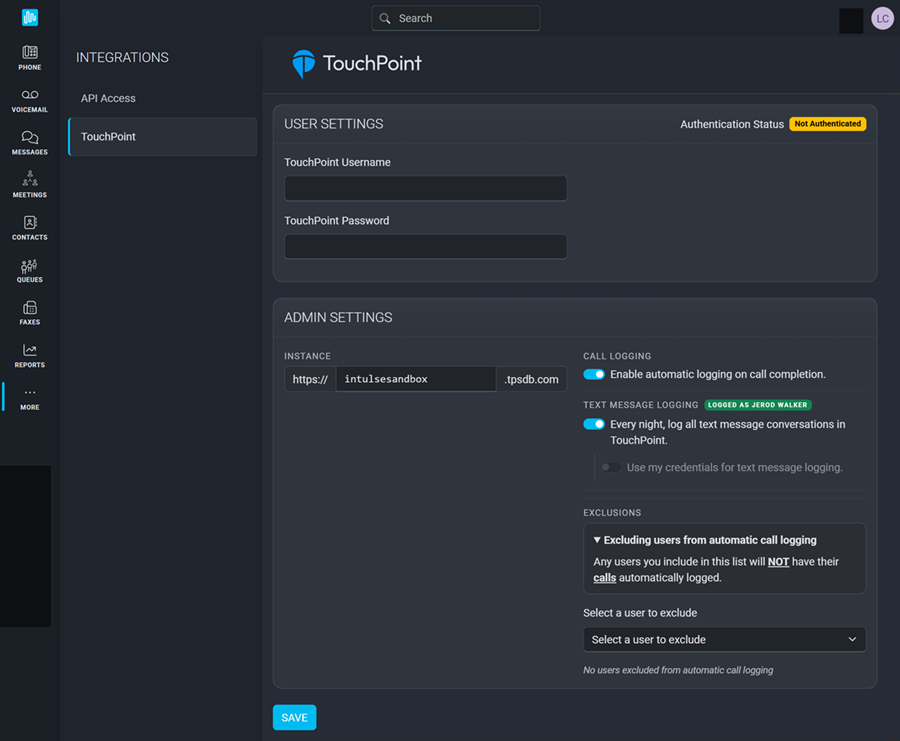
All Users
Each user in the Intulse system must complete the following steps.
- Open the Intulse App and select the More menu tab.
- Click Integrations then select Touchpoint from the list.
- Enter your Touchpoint Username and Password.
- Click the Save button.
- Once you've completed the authorization process, the Authentication Status will change to Authorized.
System Administrators
Only system administrators can update the following settings for your Touchpoint integration.
- Enter your organization's Touchpoint Instance URL.
- Choose if you wish to Enable automatic call logging for your church.
- Choose whether you want text message logs created for your organization each evening.
- An admin must check the credentials box to have texts logged for all users.
- Use the drop-down list to select users who should be excluded from automatic call logging.
In order to fully benefit from this integration, both Touchpoint and the Intulse App should be open and running in the background of your device
For more information about Touchpoint, check out their website!