
&

The Intulse and Slant integration connects your phone system directly to your Slant account, making it easier to initiate communication with clients.
Not an Intulse customer? Learn about our Slant VoIP integration »
With the integration enabled:
Intulse Companion App:
Intulse built the name and phone number look up portion of this integration. That is the only part we will be able to troubleshoot with you. For any questions about call or text logging, you will need to contact Slant.
Click HERE to read Slant's support article about this integration.
To experience the integration between Intulse and Slant, you will need to use the Intulse App.
If you would like to have the Slant integration enabled for your account, please contact Intulse support and we would be happy to get you connected.
This guide assumes that you have installed and logged into the Intulse App on any necessary devices. If you need additional information on how to install or navigate the Intulse App, check out this thorough Walkthrough..
Once the system administrator has completed setting up the integration for your organization, EACH USER on the Intulse system must complete the following steps.
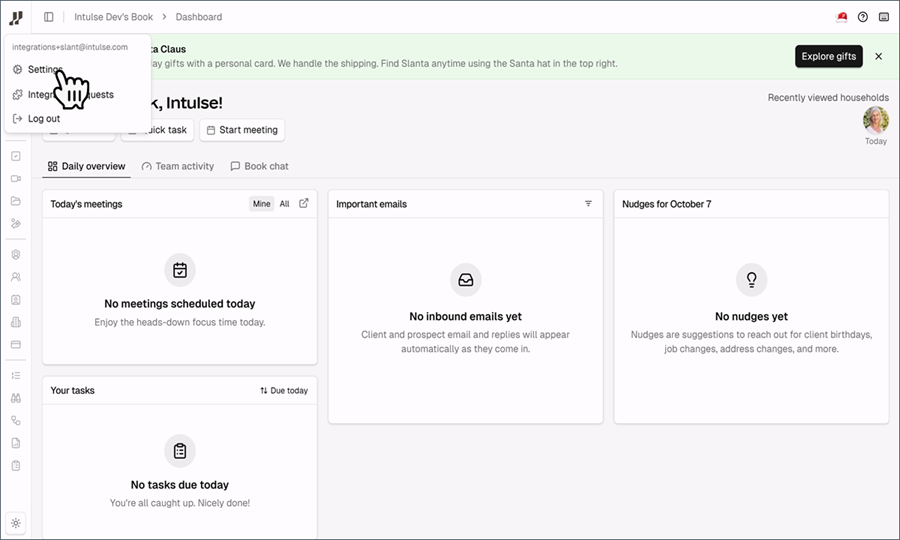
Log into your Slant account and select Settings.
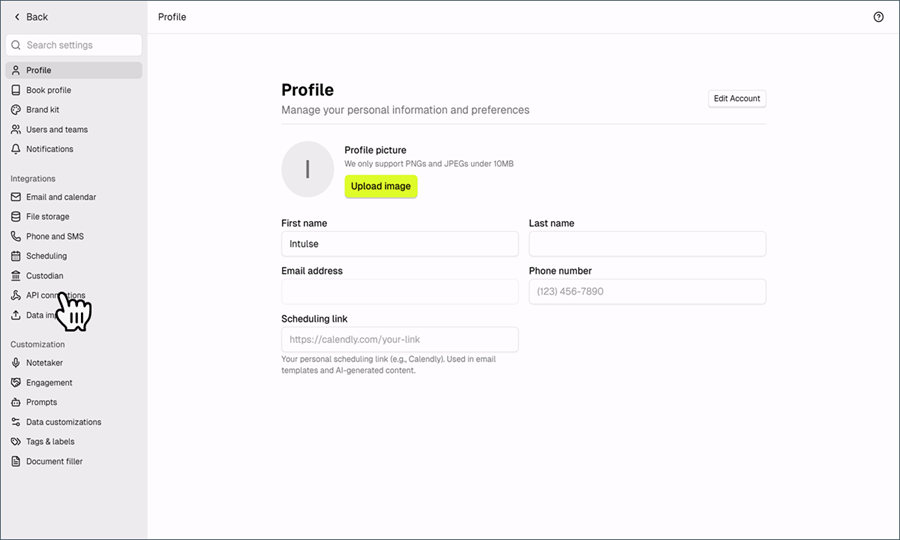
Click API Connections from the settings menu.
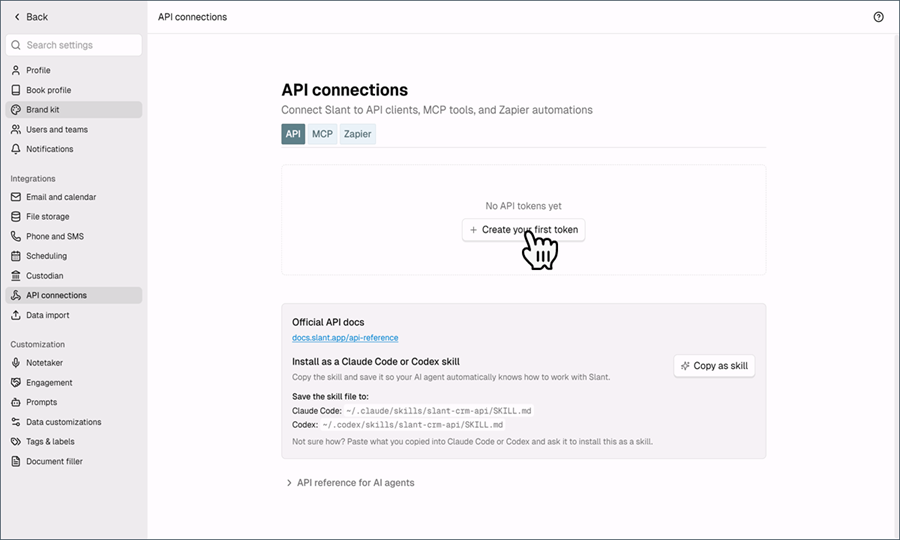
Make sure you're on the API screen and click the button to Create your first token.
New tokens are read-only by default. Read-only tokens can look up callers and search contacts, but cannot create prospects or add phone numbers. You must enable read & write access to use these features.
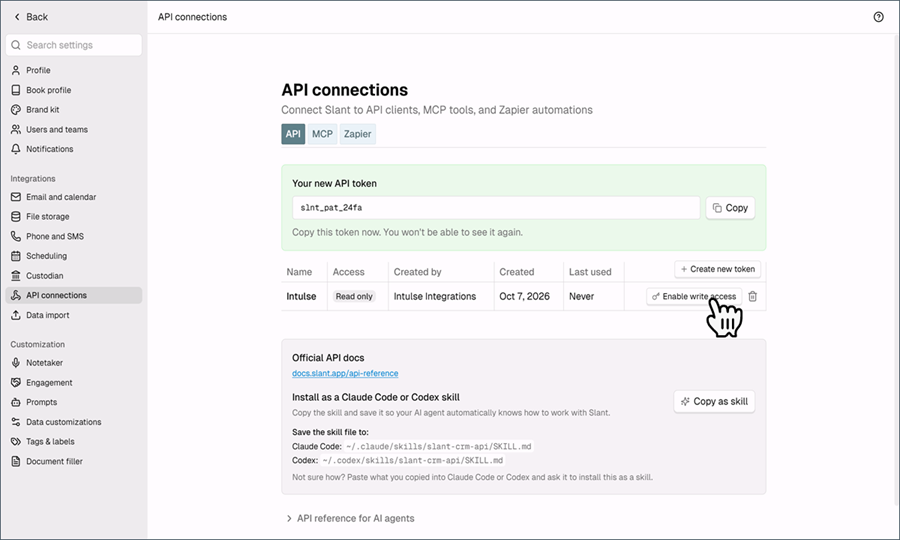
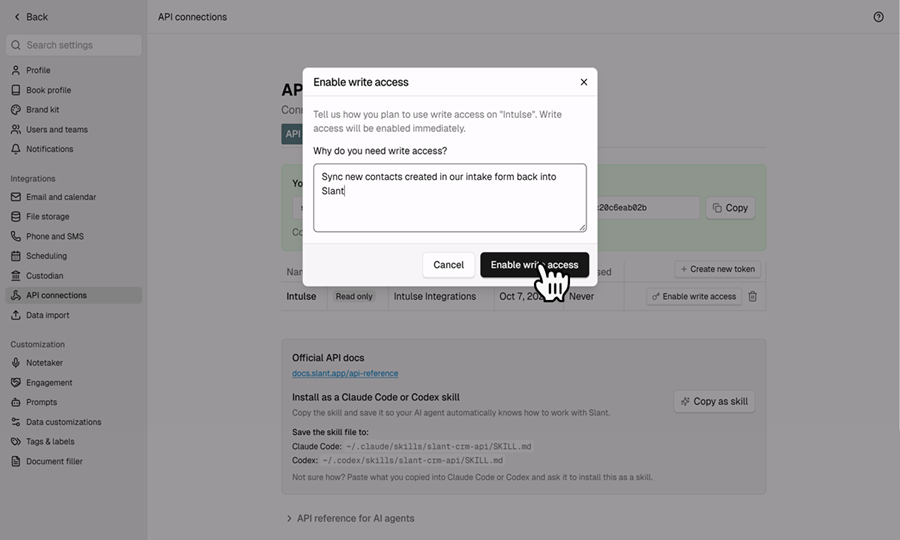
Next you will need to paste the API token into the Intulse app.
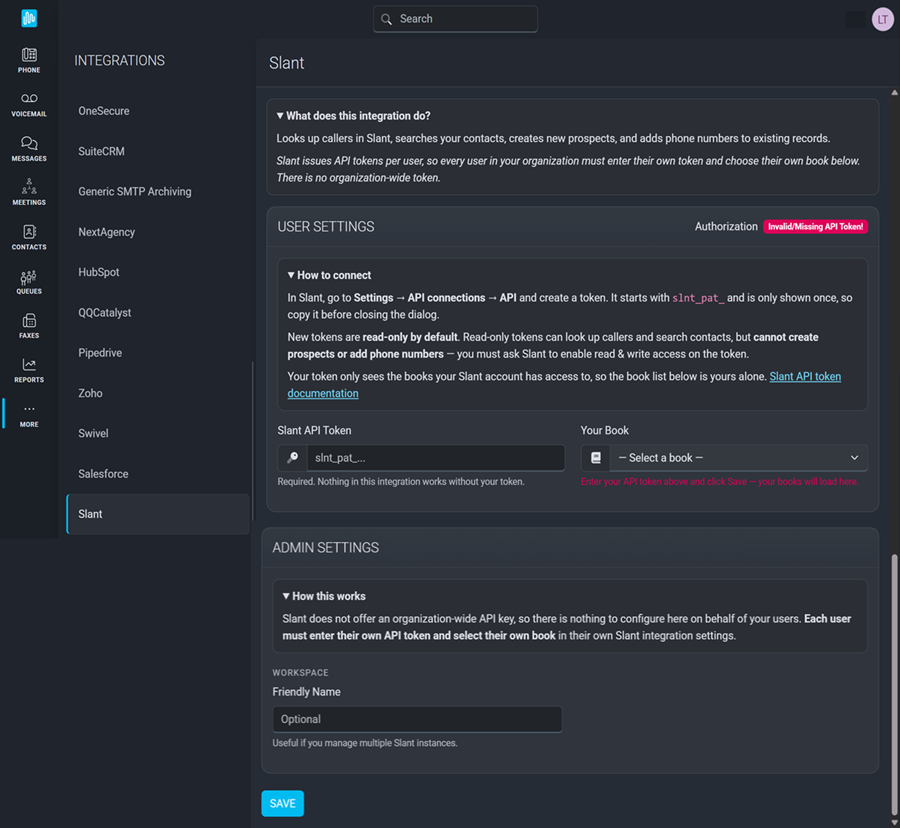
Select Your Book from the drop-down menu.
Your token only sees the books your Slant account has access to, so the book listed in the drop-down menu is your alone.
Slant doesn't offer an organziation-wide API key, so there's nothing for system admins to configure on behalf of all users. EACH USER must enter their own API token and select their own book.
In order to fully benefit from this integration, both Slant and the Intulse App should be open and running in the background of your device.
For more information about Slant, check out their website!
