Intulse Logo

AUDIO MEETINGS


Intulse Audio Meetings make it easy for teams to talk and work together from anywhere by creating a digital room where everyone can join at once to share ideas and make decisions quickly.

You have full control over your conversations. Keep your meeting private with a password, manage who is speaking by muting microphones, and remove participants when necessary.

The Meetings screen in the app displays all Audio Meetings configured for your organization. From this screen, you can update meeting settings and manage participants currently in a session.

Each organization is initially provided with one Audio Meeting. To have more created for your organization, please contact support by submitting a ticket — we’ll be happy to assist you.

AUDIO MEETING OPTIONS


1. How to Find Your Meetings

To start, look at the left side of your Intulse app.
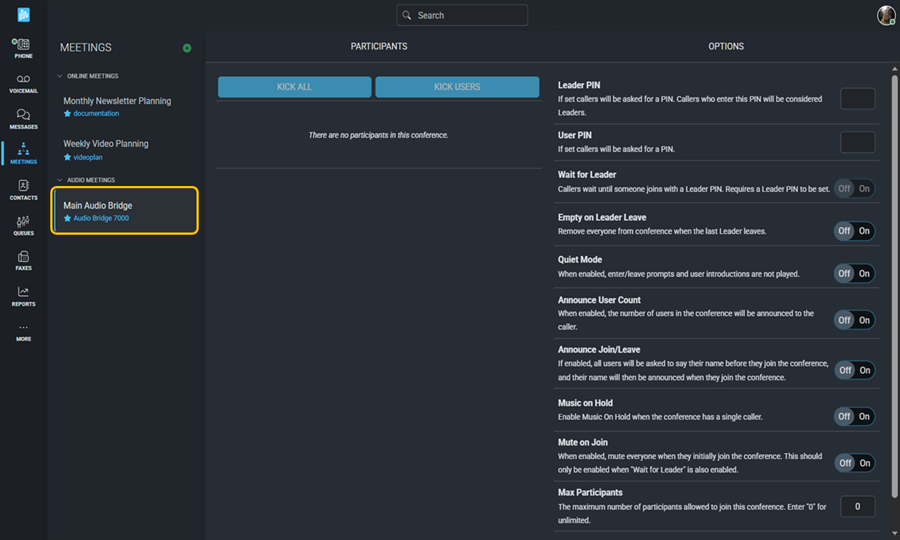
  • Click on the Meetings tab.
  • Under the Audio Meetings list, click on the meeting you want to manage (e.g., "Main Audio Bridge").
  • You can see if people are already talking by looking at the Participants section on your dashboard.

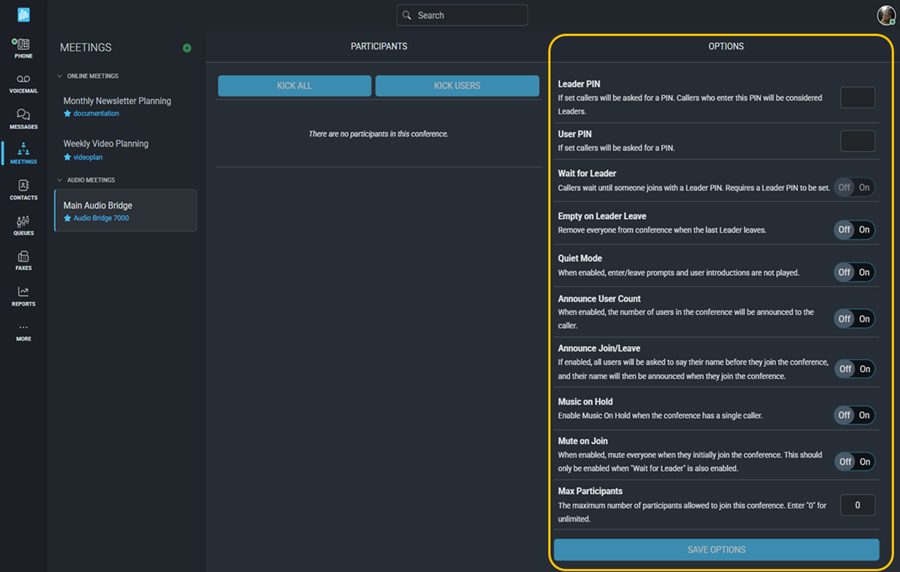
Once you select an Audio Meeting, a list of options specific to that meeting will be displayed.
2. Choosing Your Meeting Settings

On the right side of the screen, you will see an Options panel. This is where you can change how the meeting works.

  • Using Passwords (PINs):

    • Leader PIN: You can set a PIN for the person in charge. Callers who enter this PIN are considered Leaders in the call and will be able to manage settings and participants.****
    • User PIN: You can set a PIN for everyone else who joins. If set, callers will be asked for this PIN to enter, restricting access to the meeting and making it more secure.
  • Leader Controls:

    • Wait for Leader: If turned On, callers must wait until someone joins with a Leader PIN before they can enter the meeting.
    • Empty on Leader Leave: If this is turned On, everyone is removed from the meeting as soon as the last Leader hangs up.
  • Sounds and Announcements:

    • Quiet Mode: Turn this on to disables all enter/leave prompts and user introductions. By default, an audible prompt is played whenever someone joins or leaves the conference room. Enable this option to suppress those sounds and keep the conference quieter.
    • Announce User Count: When a new person joins, the app will tell them how many other people are already in the meeting.
    • Announce Join/Leave: This asks people to say their name before they enter, then plays that recording for everyone in the room when they join or leave.
  • Microphones and Music:

    • Music on Hold: This plays music if only one person is in the meeting room so they aren't waiting in silence.
    • Mute on Join: This automatically turns off everyone's microphone when they first join so the meeting stays quiet.
  • Participant Limits:

    • Max Participants: You can set a limit on how many people can join the meeting at once. Entering "0" allows an unlimited number of people.

Always click the Save Options button at the bottom when you are finished!

3. Managing People in the Meeting

While the meeting is happening, the leader can control what is going on using the Participants list in the middle of the screen.
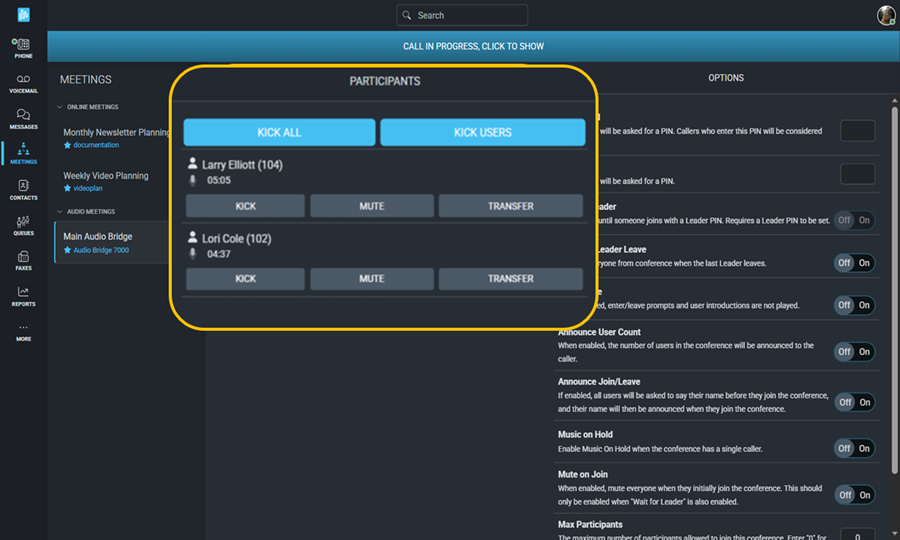
  • Control One Person: The leader can click buttons next to a person's name to:

    • Kick: Remove that specific person from the meeting.
    • Mute: Silence that specific person's microphone.
    • Transfer: Send that person's call to another person, extension, or office.
  • Control Everyone:

    • Kick All: This immediately removes every single person and ends the meeting.
    • Kick Users: This removes all regular participants but lets the Leaders stay in the room.

External callers can also join your Audio Meeting. To allow this, the meeting must be added as a dialable option in a Voice Menu. Click here for instructions on setting up voice menus, or contact support by opening a ticket.