Intulse Logo

Manage Extensions and Users as Your Team Changes


As staffing changes occur—such as eliminating a position, replacing an employee, or creating a new role—you can easily update extension and user details at any time.

Employee turnover is a normal part of running an organization. When employees are added, move into new roles, or leave, extensions and user settings need to be updated to keep your system accurate and secure. These updates require only a few simple steps and can be completed by any system administrator.
What to do when an employee leaves and is NOT being replaced
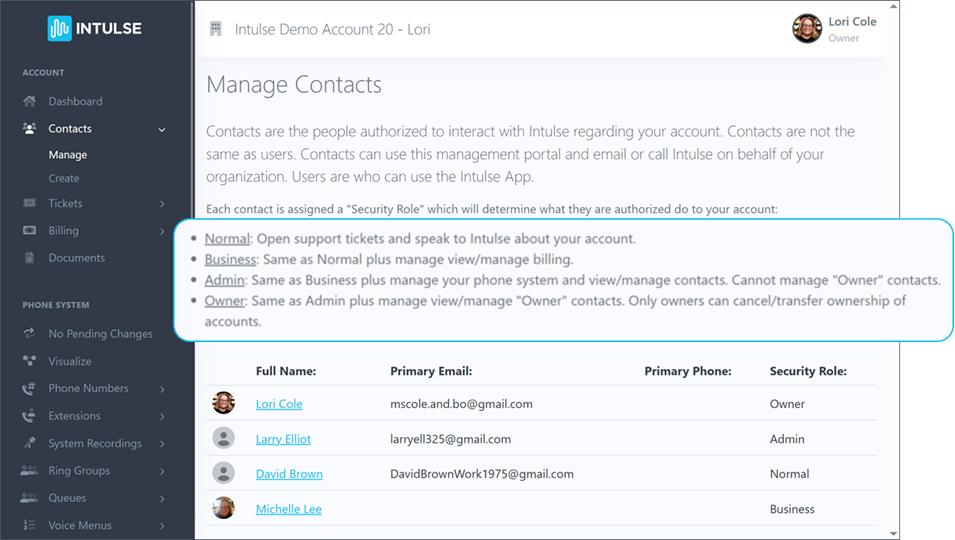
  1. If they were a Contact with the authority to interact with Intulse on behalf of your organization, Delete them in the Account Center under Manage Contacts.
  2. If they had a physical phone, you will want to remove them as the user of that Device in the Account Center. Go to Manage Devices and select the Extensions tab where you will need to uncheck the Is Active box and Save the changes.
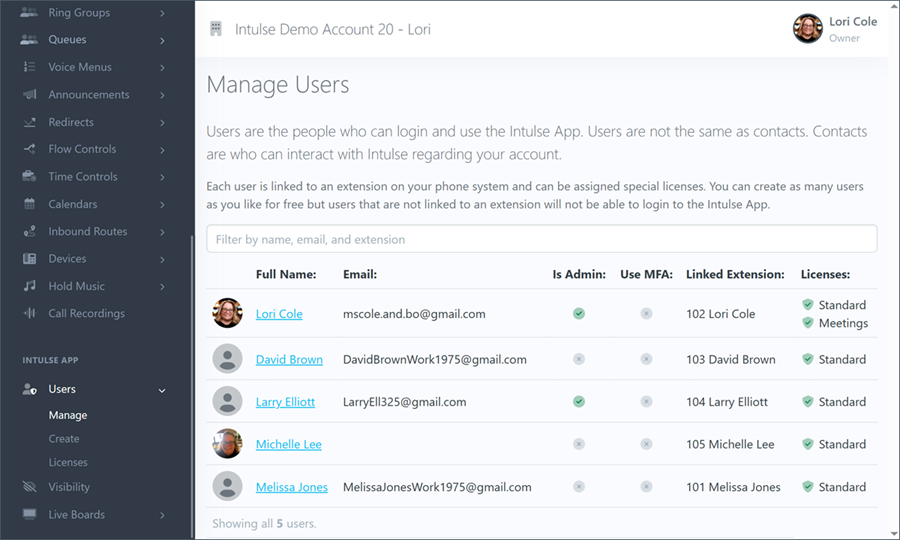
  3. Next, go to Manage Users, select the name of the person being removed and click Delete.
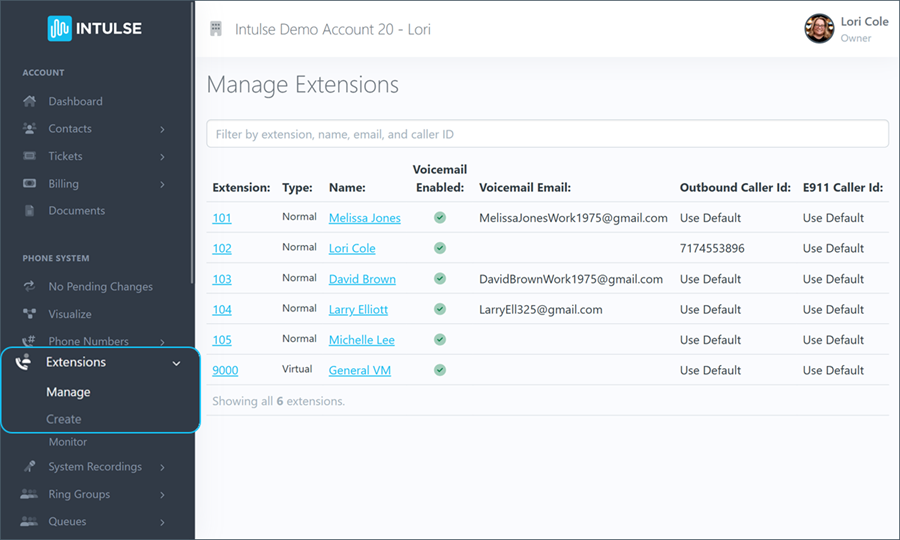
  4. Finally, go to Manage Extensions and select the name of the person being removed and click Delete.
  5. You will need to click Apply Changes to make these updates active.

What to do when an employee leaves and IS being replaced
  1. If the person being removed was a Contact with the authority to interact with Intulse, update the name and email with the new employee's information in the Account Center under Manage Contacts. Make sure the assigned Security Role is correct.
  2. Next, go to Manage Extensions and update the name and email for the appropriate extension. Click Save and Apply Changes.
  3. If the new employee will take over use a physical device, go to Manage Devices and select the appropriate device. Change the Name for the device, and go to the Extensions tab to make sure the correct extension is selected. Also check the Is Active box before you Save the changes.
  4. Finally, go to Manage Users, select the name of the person being removed and click Delete. Then go to Create Users and select Create from Extensions where you can select the new employee as a user in the Intulse App. Be sure the box is checked to Send new user Welcome email as this will provide them with an introduction to the Intulse App.

What to do when a new employee joins your organization
  1. If they should have the authority to communicate with Intulse on behalf of your organization, go to Create Contacts and enter their Name and Email and select the correct Security Role.
  2. Next go to Create Extensions. Enter an Extension ID Number that fits into the flow of your other extensions. Enter the employee's Name and decide whether to Enable Voicemail.
  3. Click Apply Changes in the Account Center menu.
  4. If they will have a physical device, follow the steps to Create a Device for this extension.
  5. Finally, go to Create Users and select Create from Extensions. Check the box next to the new employee and make sure Send new user Welcome email is checked. Click Create.

As always, we here at Intulse are so grateful for the opportunity to partner with your organization. If you have any questions or need support related to any of our services, please feel free to contact us via a support ticket, or give us a call. We are happy to serve you any way we can.