Manage your Phones for Holidays and Special Events
Set up your phone system to easily manage the flow of calls for holidays or special events.
Thanksgiving is less than a month away. Set up your holiday call routing now so callers hear the right message on the days you're closed.
There are two ways to route calls when your office is closed:
 Time Controls handle closures you know about in advance, like holidays. Set them up once and they turn on and off automatically.
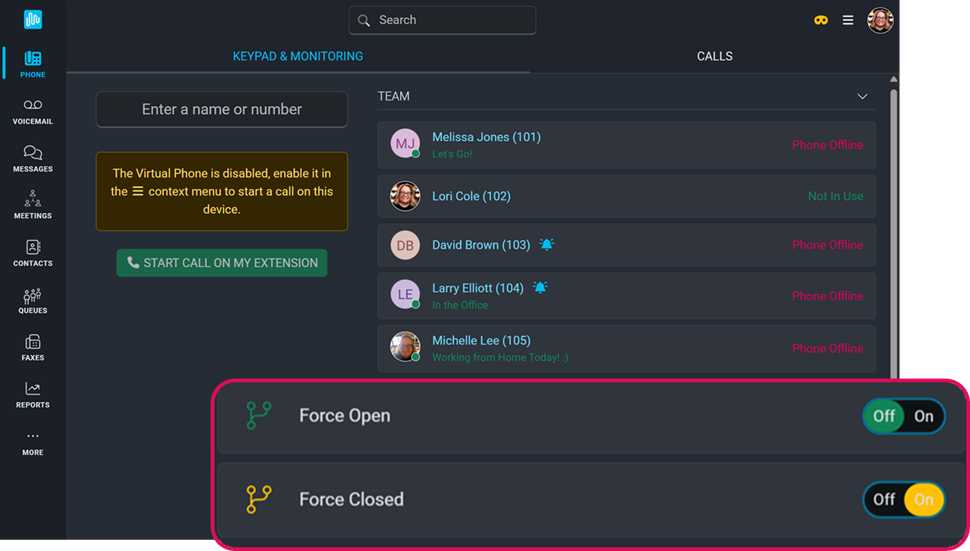
 Flow Controls are a manual on/off switch for unplanned closures, like bad weather or a power outage.
Before you start
- Permissions: You need Owner or Admin access in the Account Center to edit calendars, time controls, and flow controls. If you don't see these options, ask your system admin or contact us.
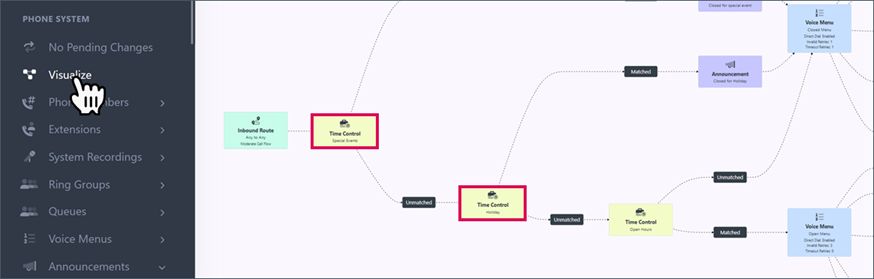
- Which option to choose: Check your visualize screen to see if your phone system uses Time Controls or Flow Controls.
- For Time Controls, use Option 1.
- For Flow Controls, use Option 2.
- Your closure dates: List the holidays and special closures you plan to observe this year.
- Your closed greeting: Decide what callers should hear, and whether calls should go to voicemail or a closed-hours voice menu.
Option 1: Automate holidays with Time Controls
If your organization is set up to use time controls, follow these steps. Click HERE to learn more about time controls.
- Add your closure dates to a calendar. In the Account Center, open Calendars and add each holiday or closure date.
- If it's a partial day closure, enter the hours you will be closed. If it's a holiday or full day event, select all day in the calendar event settings.
- It's a good idea to enter all holidays/events for the year so you don't need to think about this every time there's a closure.
- You can create events that repeat annually so you don't need to do this every year.
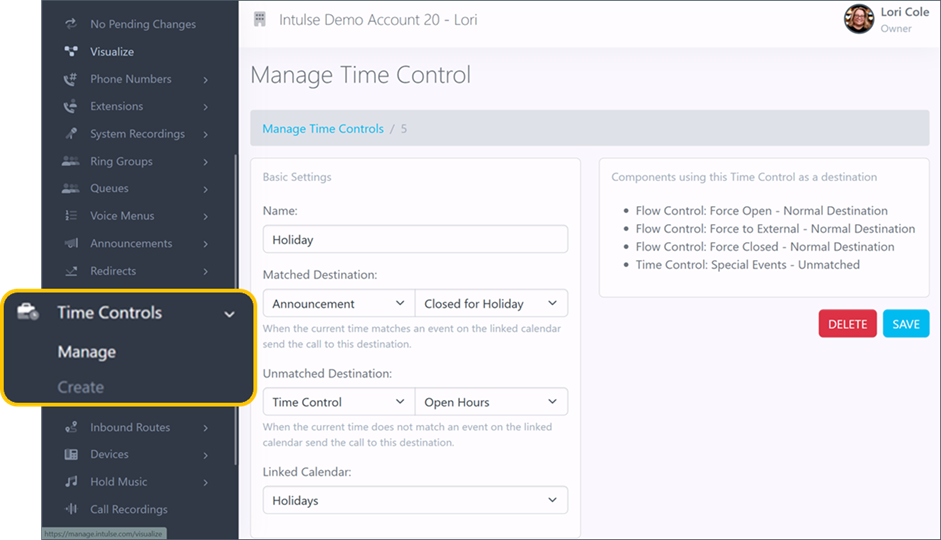
- Follow the time control to the matched announcement.
- Check that announcement to find the attached system recording.
- Listen to the system recording to make sure it communicates the correct message. You can record one generic announcement to use for multiple holidays and events. If it's an unexpected or extended closure, you may want to attach a different recording.
- Make sure calls are routed to the correct destination during the closure. Send them to an announcement followed by voicemail, or to a closed-hours voice menu.
Once this is set up and holidays are entered for the entire year, your system will be automated and you won't need to worry about this for each holiday.
Option 2: Close your phones Manually using Flow Controls
A flow control works like an on/off switch. When it's on, calls go to the destination you choose. When it's off, calls route normally. Click HERE to learn more about flow controls. A full article and video about flow controls can be found HERE.
- System administrators can return to the Flow Control in the Account Center at any time and change the Current Mode setting.
- Authorized users can also change the mode by dialing the Feature Code, preceded by an asterisk, from an Intulse managed desk phone or the Intulse app. If a password was set, it will be required here. Dialing the Feature Code immediately toggles the Flow Control between Normal and Override modes.
- Flow Controls can also be managed using a BLF button on your physical device. The button will glow green in Normal mode and red in Override.
- Flow Controls can be added to Smart Monitoring in the Intulse app, where they can easily be toggled on/off. By default, only system administrators can monitor Flow Controls, but additional security roles or individual users can be authorized to access them in the Admin portion of the app.
IMPORTANT: A call flow control stays on until someone turns it off. Calls will continue being directed to your closed destination until it is returned to Normal mode.
FAQ
What happens if a time control and a flow control are both active?
Check your Visualize screen to see the path that calls will follow when arriving at an inbound route. Whichever appears first in the call flow will take precedence.
How do I test my setup before the holiday?
- If you want to test your flow control, simply toggle it on and try calling from an external number. Your call should be routed to your override location. When it's toggled off, calls should be routed as usual.
- To test a time control, create a temporary event on your calendar for the time when you want to test it. A call from an external number should be routed to your "matched" announcement. DON'T FORGET TO DELETE IT so calls return to their normal route.
Do the calendars provided by Intulse already include standard holidays?
No, all calendars are blank until you populate them with your organization's events. The open hours calendar may be set up for you during your onboarding experience, depending on the package you purchased at signup.
Can I close for part of a day, like an early closure on Christmas Eve?
Yes, just uncheck the "All Day Event" box and enter the specific hours you will be closed for that calendar event.
For more information on any of these tools, visit the Account Center Walkthrough on our Support Website and click on the related tabs.
As always, we here at Intulse are so grateful for the opportunity to partner with your organization. We want holiday and special events to go as smoothly as possible for you. If you need assistance in setting up either of the features mentioned above, or have any additional questions, please feel free to contact us via a support ticket or give us a call. We are happy to help you any way we can!