
The Yealink AX83H is a premium portable Wi-Fi IP phone designed to deliver seamless, flexible wireless communication across dynamic business environments. Unlike traditional DECT cordless phones that rely on dedicated base stations, the AX83H connects directly to your existing business network via advanced dual-band Wi-Fi 6 technology. With 802.1k/v/r fast roaming protocols, the handset transitions between network access points in milliseconds, preventing dropped calls or audio lag as employees move throughout large facilities.
To ensure consistently clear conversations, HD Voice and Smart Noise Cancellation technology actively reduce disruptive background noise. Built-in Bluetooth 5.0 and a standard 3.5mm headset jack also provide flexible hands-free communication options, helping users stay productive while on the move.
A vibrant 2.4-inch color display and sleek, compact design allow the AX83H to combine full desk-phone functionality with true on-site mobility. The handset supports up to 4 SIP accounts, 5-way local conferencing, and seamless integration with enterprise management systems for efficient over-the-air deployment. Powered by a robust 2000mAh rechargeable battery, the AX83H delivers up to 9 hours of talk time and 200 hours of standby time. It also features both a modern USB-C charging port and a traditional desktop charging cradle for added convenience.
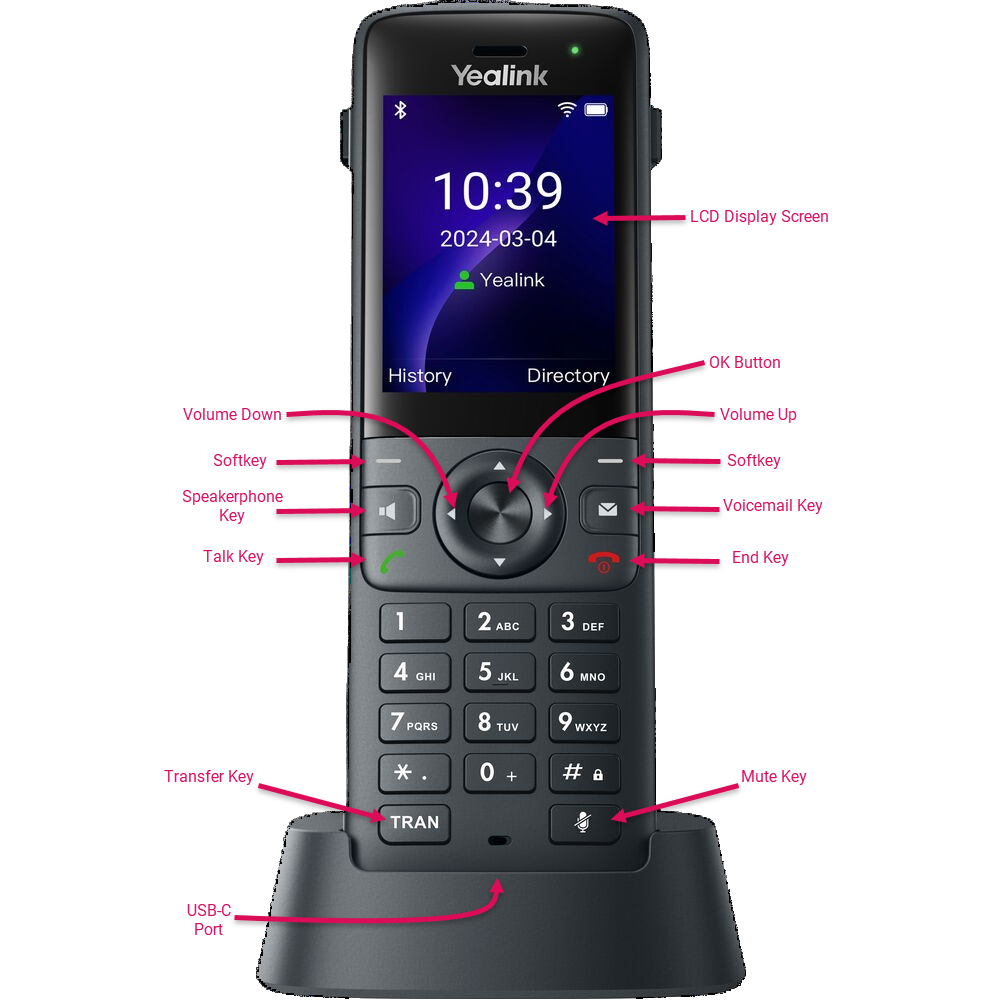
If you're bringing your own phone to Intulse, a factory reset will clear out any settings from your previous provider. A factory reset is also helpful in situations where any other troubleshooting steps haven't resolved an issue with your phone. This will restore your phone's settings to the factory defaults and allow you to start from a clean slate.
To perform a factory reset, press and hold the OK key for 5-10 seconds until you see a confirmation message. Press OK and the reset will begin. If your phone is already provisioned with Intulse, it will automatically reconnect to Intulse's services once the factory reset is complete.
Factory resetting your phone will erase all programmed BLF buttons. They can be reprogrammed by a system admin in the Account Center.
Follow these steps to connect your device to Wi-Fi:
Most settings related to your device are best handled through the Intulse app or by your system administrator in the Account Center so they will be applied to your extension across all devices. Any settings you select here will only apply to this handset.
Follow these steps to add Speed Dials to your handset:
A few sound and display settings specific to yourAX83H can be found in the Basic menu. These include:
Connect your Bluetooth headset by navigating to the Basic menu. Scroll down to the Bluetooth option and use the left/right arrows to turn Bluetooth on and press Save.
Make sure your Bluetooth device is set to pairing mode. Once your device has been detected, it will show on the phone's display screen. Press Connect and you will be able to make and receive calls using your headset.
To place an outgoing call, choose one of the following options:
Calls placed from your Intulse app when your Virtual Phone is disabled will begin from a connected physical device. When you enter the name or number in the app and click the call button, any enabled desk phones assigned to your extension will also ring. When you pick up the call on one of those devices, you will hear the outgoing ringtone because the system is in the process of calling the intended party.
You can use intercom to call another internal handset.
When you are on a call, you can hold your current call and place a new call.
When you receive an incoming call, the phone will ring and the screen will display the details related to the incoming call.
To answer the incoming call, do one of the following:
If Call Waiting is enabled on your phone AND your Intulse app, you can answer an incoming call even if you are currently on an active call. A call waiting tone will alert you of the new call and the incoming caller ID details will be displayed on your phone.
Note: Call Waiting must be enabled to utilize this feature.
You can place an active call on hold and resume the call when you are ready. When you place a call on hold, the held party will hear the music or recording selected by your system administrator.
Placing an active call on hold is simple.
Press the Hold softkey and the caller will immediately be placed on hold.
You can easily view and resume any calls place on hold.
During a call, you can transferit to another extension using one of the following methods:
Note: Many organizations use call parking instead of transfers because it's an easier way to move a call to other users.
A blind transfer sends the caller to another extension without any interaction between the person transferring the call and the extension receiving the transfer.
A semi-attended transfer places the caller on hold and allows you to hear a ringback tone before transferring the call. If the user at that extension isn't available, you can retrieve the caller from hold. An attended transfer puts the caller on hold so you can communicate with the intended recipient prior to the call being transferred.
Note: If you wish to move calls around while having the opportunity to speak with the destination before they receive the call, then Intulse recommends using call parking instead of attended transfers in most cases.
To transfer a call directly to a voicemail, enter an asterisk before the extension number. For example, to transfer a call to the voicemail for extension 107, perform a transfer to *107.
Call parking makes the process of moving calls to different extensions within your organization much easier. Calls are placed on hold by assigning them to a "parking space". Any user can retrieve a call from the parking lot by pressing the corresponding line key on any phone connected to your system.
For example, let's suppose that John answers many incoming calls during the day. John may need to send some of those calls to his manager, James. John can park a call in a space and call or message James to let him know that a caller is holding for him in Park 71. James can answer that call from any phone connected to their Intulse system. If James is unable to answer the call, John or anyone else in their organization can retrieve it. If no one picks it up, the call will eventually ring back to the person who parked it.
Parking a call in a parking lot is simple and can be accomplished in a few simple steps.
Parked calls can easily be retrieved from any phone connected to your Intulse phone system.
We will cover how to merge a few calls together here, but Intulse offers an Audio Bridge solution, which is what we recommend for more than 3 callers.
Multiway Calling, or creating a phone call between 3 callers, can be accomplished by following these steps:
You can also invite a held call into a conference call with an active call. Let's assume you have two calls on your phone that you want to merge into one conference call.
When you are ready to end the conference call, you have the choice to split the callers into separate individual calls, or completely end the call.
For more information please see the Conference Calling Guide.
The following will cover how to access the voicemail system from your phone. Intulse has a complete guide on how to use the voicemail system. For more information please see the Voicemail User Guide.
Accessing the voicemail for your extension is simple.
 ) to access your mailbox.