WH68 USER GUIDE
.png "WH68")
OVERVIEW
The WH68 is a premium wireless headset built for professional communication, combining DECT and Bluetooth technology to deliver exceptional flexibility, mobility, and performance. Equipped with four noise-canceling microphones—two feedforward and two feedback—it uses advanced Acoustic Shield Technology 3.0 to minimize background noise and ensure your voice is heard with exceptional clarity. An integrated busylight signals when you're on a call, helping reduce interruptions and maintain focus.
Designed for lasting comfort, the WH68 features an ergonomic, cloud-like fit with soft memory foam ear cushions, petal-shaped ventilation ports, and oval earcups that provide a natural, pressure-free listening experience throughout the workday. It connects seamlessly to IP phones and UC platforms with plug-and-play simplicity, allowing effortless device switching and dependable wireless performance. Whether you're working at your desk or moving throughout the office, the WH68 delivers the comfort, audio quality, and reliability needed to stay productive all day.
- DECT Range: up to 185m/606ft
- Bluetooth Range: up to 50m/164 feet
- DECT Talk Time: Up to 16 Hours;
- Bluetooth Talk Time: Up to 32 Hours
- Standby Time: 195 hours
- Charging Time: 1.5 hours
SET UP & CONNECTION
Set Up
- Plug the power adapter into the back of the base and plug into a power source. Allow it to charge for at least 90 minutes prior to the first use.
- Toggle the Power/Bluetooth button to the center to turn it on.
- Toggle it back to the power icon to turn it off again.
- Dock the headset to pair it to the base prior to connecting it to a device.
- The LED will turn green for 3 seconds and then indicates the charging status.
- Dock your headset or plug a USB-C directly into the port on the headset to charge it.
Bluetooth Pairing
- Turn your mobile device's Bluetooth on.
- Toggle the headset's Power/Bluetooth button to Bluetooth and hold for 3-5 seconds.
- The headset's LED will flash to indicate that it has entered pairing mode.
- Select the Yealink WH68 from the list of available options shown on your mobile device.
- Your headset can only be paired with one Bluetooth device at a time.
DECT Connection
- Use the USB cables to connect your headset stand to your Phone and/or PC.
- The Call Control Button LED will turn blue to indicate successful pairing.
The Yealink app will provide additional setting options for your WH68.
The WH68 can simultaneously connect to your PC, desk phone, and mobile device. The headset will prioritize the audio for whichever device you started with and will switch to a different device if you pause the current audio. You can also use the Phone, PC, and UC buttons on your stand to select a different audio source.
Bluetooth devices sometimes have a hard time switching between devices and may become confused. In this case, you may need to power the headset off and back on to reset the audio source.
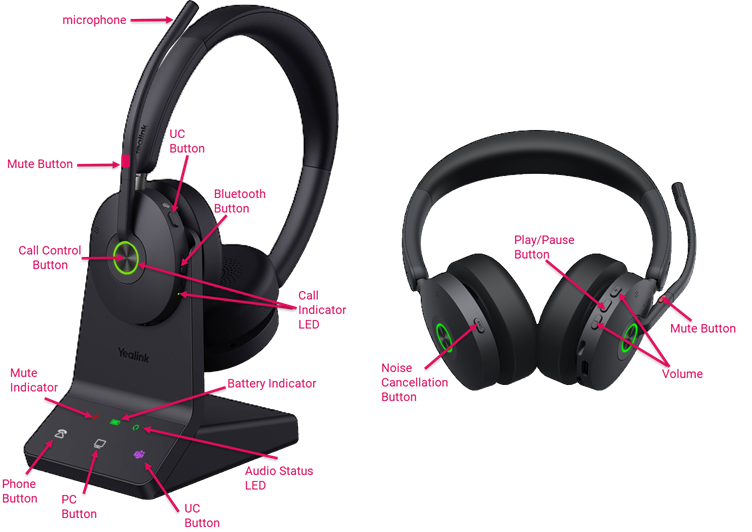
BUTTONS & INDICATORS
Base
- The Mute Status LED alerts you when the headset is muted.
- The Charge Status LED alerts you when your headset needs to be charged.
- The Audio Status LED alerts you to the audio status between the base and headset.
- Press the Phone Button to enter the phone dialing screen, answer, or end a call via your connected physical phone.
- Double press to reject the call coming to your desk phone.
- Press the PC Button to enter the softphone dialing screen, answer, or end a call via your connected PC.
- Double press to reject the call coming to your softphone.
- Use the UC Button to connect if you use Microsoft Teams.
Headset
- The Call Control Button allows you to manage calls, as well as provides an LED indicator for the status of your headset.
- The LED Busylight glows red to indicate that you are on a call.
- Press the UC Button to connect if you use Microsoft Teams.
- The Volume up and down buttons will adjust the volume of your headset.
- The red Mute/Unmute Button will manage your headset's microphone.
- The Power/Bluetooth Button will power you headset on/off or pair it with a Bluetooth device.
- The ANC Button will activate noise cancellation.
- Press 1 time for light noise cancellation, allowing you to hear ambient noise.
- Hold for 2 seconds to enter immersive mode, providing stronger noise cancellation.
- The Charging Port can be used to charge your headset without connecting it to the base, or for a wired connection directly to your phone or PC.
USING YOUR HEADSET
Your WH68 can be worn on either the left or right side for personalized comfort.
- To Answer a Call, do ONE of the following:
- If your headset is connected to the Intulse app, you will need to answer the call on the app.
- If you are connected to a physical Yealink device, you can:
- Press the Call Control Button on the headset
- Lower the microphone arm
- Undock the headset
- Press the Phone Button or the PC Button on the base
- To End a Call, do ONE of the following:
- If your headset is connected to the Intulse app, you will need to end the call on the app.
- If you are connected to a physical Yealink device, you can:
- Press the Call Control Button on the headset
- Dock the headset
- Press the Phone Button or the PC Button on the base
- To Reject an Incoming Call, do ONE of the following:
- If your headset is connected to the Intulse app, you will need to reject the call on the app.
- If you are connected to a physical Yealink device, you can:
- Double press the Call Control Button on the headset
- Double press either the Phone Button or PC Button on the base
- To Redial, do ONE of the following:
- If your headset is connected to the Intulse app, you will need to redial within the app.
- If you are connected to a physical Yealink device, you can:
- Double press the Call Control Button on the headset.
- Double press the Phone or PC Button on the base.
- To Hold/Resume a call:
- If your headset is connected to the Intulse app, you will need to place the call on hold within the app.
- If you're connected to a physical Yealink device, hold the Call Control Button on the headset for 2 seconds.
- To Mute/Unmute a caller, do one of the following:
- Press the red mute button on the microphone arm.
- Move the microphone arm up to mute and down to unmute.
- To Adjust the Volume while on a call:
- Press the volume buttons on the side of the headset
- Press them simultaneously for fewer interruptions while not in a call